
Google Meet interview cheating detection, with no bot in the call
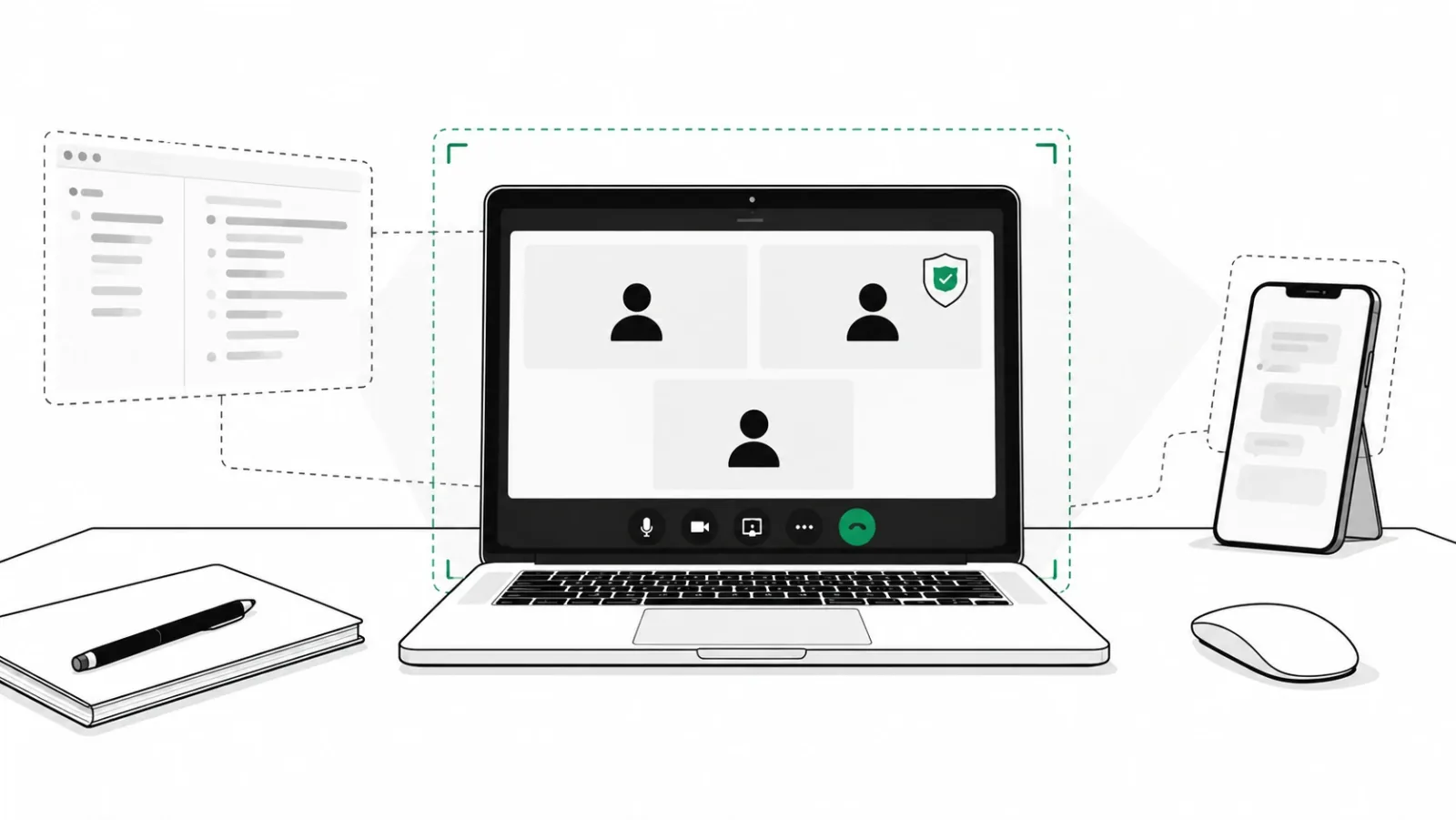
To catch hidden AI help, stand-ins and face swaps in a Google Meet interview without adding a bot to the call, run the check on the candidate's own computer and show the result inside Meet.
On this page
- Introduction
- Catching cheating in a Google Meet interview: why it is hard
- What Google Meet shows the host, and what it does not
- Tab, window or entire screen: what each one tells you
- AI helpers candidates use on Google Meet
- Why not a bot in the call?
- Before the call: a 60-second script for the interviewer
- How it works in a Google Meet interview: three steps
- What it checks during the interview
- Tested results
- What you can still do by hand
- Frequently asked questions
- Sources
Key takeaways
- Meet carries what the computer sends. Camera video, microphone audio and a presented tab, window or screen; nothing else.
- An entire-screen share is not proof. Apps that ask to be left out of capture often do not appear in it.
- Many helpers are not bots. Otter's extension says no extra participant joins the call.
- Open with a 60-second script. Cameras on, the rule on AI help, other apps closed.
With Verified Call, the candidate does a short check before the call, it keeps checking during the call, and you see a badge next to each person in Meet.
This guide explains why Google Meet on its own cannot tell you much, why a bot in the call sees the same limited picture you do, and how to set up a bot-free check in three steps.
Catching cheating in a Google Meet interview: why it is hard
Google Meet shows you a video and a voice. It does not show you what is happening on the candidate's computer.
- Hidden AI answer tools such as Cluely draw windows that screen sharing does not capture. A shared screen can look clean while answers sit on top of it. See how to detect Cluely and hidden AI tools.
- Camera software looks like a webcam to Meet. A recording, a face swap or an AI avatar can arrive through it, and Meet shows it like any other camera. See face swaps and camera software.
- A stand-in can join in the applicant's name, or a helper can feed answers off camera. See proxy interviews.
Sixty percent say AI has made virtual interviews harder to trust
Interviewers often notice that something feels off. On a video call they rarely have the facts to act on it. In Checkr's 2026 survey of 3,000 US hiring managers, 60% said AI has made virtual interviews harder to trust. More numbers are on the interview integrity statistics page.
What Google Meet shows the host, and what it does not
Google Meet carries what the candidate's computer sends: camera video, microphone audio, and anything they choose to present. Everything else stays on their side.
Tab, window or entire screen: what each one tells you
Google's help page says: "You can present a tab, a specific window, or entire screen". Each shows less than it seems:
- A tab shows one browser tab. To hear sound from it, the candidate must present a tab and turn on "Also share tab audio".
- A window shows one app's window, not what floats on top of it.
- The entire screen shows what the computer sends to capture. Apps that ask to be left out of capture often do not appear. Microsoft's documentation says such a window "does not appear at all" in a capture, though newer Mac capture can still show some of them, as Electron's documentation notes.
So asking for the entire screen is reasonable, but it is not proof of a clean desktop. Some helpers list Google Meet among the platforms where they stay hidden. Interview Coder marks platforms "Undetectable", while its own FAQ asks: "Why is Interview Coder visible on Google Meet with Windows 10?"
AI helpers candidates use on Google Meet
| Kind of helper | What the company says | What the host sees in Meet |
|---|---|---|
| Hidden desktop overlays (Interview Coder, Cluely) | Interview Coder: "Overlay remains hidden when sharing your screen". Cluely: "Invisible to screen share." | A clean shared screen |
| Listen-and-answer apps (Parakeet AI, Final Round AI) | Parakeet marks eight platforms, Google Meet among them, as "Verified" for staying invisible. Final Round AI offers "real-time answers in a private window only you can see". | A normal call, sometimes a pause before answers |
| Live transcripts with no bot (Otter's Chrome extension) | "No-bot in Google Meet"; "no extra participant joins your call" | Nothing in the participant list |
| A phone beside the laptop (LockedIn AI, Final Round AI) | LockedIn AI: "Prop it next to your laptop". Final Round AI covers "phone screens via Another device". | Nothing; the phone is off camera |
These are each company's own claims, read on October 29, 2026. For each tool in depth, see how to detect Interview Coder, Parakeet AI and Otter and how to detect Cluely.
Why not a bot in the call?
Some tools add a participant to the meeting that records and analyses the call. That can help with notes and timing, but a bot in the call receives the same audio, video and shared screen that you do. It cannot see a window that was hidden from screen sharing, and it cannot see which device made the video. It also adds an extra name to the participant list, which candidates notice. For every approach side by side, see cheating detection tools by approach.
Bots are easy to spot because they show in the participant list. Many helpers are not bots. Otter's own Chrome extension advertises "No-bot in Google Meet", so a live transcript can run on the candidate's side with no extra name in the call.
A check that runs on the candidate's computer, with their consent, sees what the call cannot carry: hidden AI tools, camera software, and whether the same person stays on.
| Question | Check on the candidate's computer | A bot that joins the call |
|---|---|---|
| Sees AI tools hidden from screen sharing | Yes | No |
| Tells a direct camera from camera software | Yes | No |
| Checks the same person stays on the call | Yes | No |
| Adds a participant to your Meet call | No | Yes |
Before the call: a 60-second script for the interviewer
A short opening sets the rules and makes later questions fair. In about a minute:
- "Please keep your camera on, with your background visible." The FBI's advice: "Mandate video and request that their backgrounds be unobscured."
- Say whether AI help is allowed in this interview, in one sentence.
- Ask the candidate to close other apps and notifications before you start.
- If you will ask them to share, say which: a tab, a window or the entire screen.
- If the video looks odd later, ask them to "wave their hand in front of their face", as the FBI suggests.
Meet's host controls help with the room, not the computer. With Host Management on, "you can lock all participants' audio and cameras", and you can limit who presents. None of these reach apps on the candidate's computer or a phone beside it.
How it works in a Google Meet interview: three steps
- Turn Verified Call on for the interview.
- The candidate gets a link by email. They agree on a consent screen and run a short check, about five minutes, before the call.
- Join the Meet call as usual. A badge appears next to each person. Click it to see the proof behind every result.
Verified Call never joins the call. There is no bot in the participant list.
What it checks during the interview
- AI tools hidden from screen sharing, including known AI interview helpers.
- Whether the video comes from a direct camera or from camera software.
- Whether the same person stays on the call, by face and by voice.
The badge reads Verified when the checks pass, Needs a look with the proof when something shows up, and Can't confirm when a check could not finish. Results are advice for you, not a verdict on the candidate, and the candidate can decline and still join.
Tested results
- Each of 4 hidden AI tools found in 30 of 30 tries; 0 of 30 false alarms with no AI tool open, and 0 of 30 with everyday apps open (October 4, 2026).
- 20 of 20 live calls read right: 10 direct cameras read Verified, and 10 face swaps sent through camera software were flagged (October 2, 2026).
- On recordings of 70 people, 0 of 3,990 sessions with someone else's face got through, and 962 of 970 sessions with the real person were cleared (October 1, 2026).
Every condition is on the Research page. Why the false alarms matter as much as the catches is covered in ask for the false-alarm rate.
What you can still do by hand
- Ask follow-up questions that build on the candidate's own earlier answers.
- Compare the face and voice with earlier rounds.
- Keep cameras on for everyone, and say at the start how the interview will run.
These are good interviewing. They are a judgment, not a finding, which is why a check with proof helps.
Frequently asked questions
Can Google Meet detect cheating in an interview?
Google Meet shows the video, audio and shared screen, not what runs on the candidate's computer. It does not show windows hidden from screen sharing or which device made the video. A check on the candidate's own computer can, and Verified Call shows its result as a badge in Meet.
How do I detect cheating in a Google Meet interview without a bot?
Use a check that runs on the candidate's own computer, with their consent, and shows the result in Meet. Verified Call checks before the call and keeps checking during it, and never joins the call.
What does the candidate need to do?
Open the link from the email, agree on a consent screen and run a short check, about five minutes. Then they join the Meet call as usual.
Can the interviewer see other apps in Google Meet?
No. Meet shows only what the candidate presents: one tab, one window or the entire screen. Apps that ask to be left out of capture often do not appear, even in an entire-screen share.
Does asking for the entire screen prove a clean desktop?
No. Some helpers say they stay invisible in Google Meet screen shares. An entire-screen share shows what the computer sends to capture, not everything that runs.
Can Google Meet host controls stop AI helpers?
Host controls can lock cameras, microphones and presenting. They do not reach apps on the candidate's computer or a phone beside it.
What should I say at the start of a Google Meet interview?
Ask for cameras on with a clear background, say whether AI help is allowed, and ask the candidate to close other apps. If the video looks odd, ask for a hand wave in front of the face.
Sources
- Google Meet HelpPresent during a video callRead October 29, 2026
- Google Meet HelpHost management controlsRead October 29, 2026
- Microsoft LearnSetWindowDisplayAffinity functionLast updated February 22, 2024
- ElectronBrowserWindow: setContentProtectionRead October 29, 2026
- Interview Coderinterviewcoder.co home page and FAQRead October 29, 2026
- Parakeet AIparakeet-ai.com home pageRead October 29, 2026
- Cluelycluely.com home pageRead October 29, 2026
- Final Round AIfinalroundai.com home pageRead October 29, 2026
- LockedIn AIlockedinai.com home pageRead October 29, 2026
- Chrome Web StoreOtter.ai: record, transcribe (version 3.11.0)Updated October 2, 2026
- FBIPublic Service Announcement I-072325-4-PSAJuly 23, 2025
- CheckrThe Hiring Hoax 2026October 15, 2026
- Verified CallResearch pageUpdated October 26, 2026
See it on a real call
Book a short demo and we will run the check on a Google Meet call and answer your questions as we go.
Related guides
 Hidden AI toolsCan Interview Coder be detected? Parakeet AI and Otter tooWhat each tool says it does, what you can and cannot see on a call, and how to check for them fairly.
 Hidden AI toolsCan Cluely be detected in an interview?Why Cluely stays off screen share, the signs that mislead, and how to know a candidate is not reading AI answers before you hire.
 OverviewHow people cheat in online and remote job interviews (2026)Every method in one table: hidden AI apps, stand-ins, face swaps, voice tools, earpieces and coding-test help, with sources and deep dives.